Setting Up OBS Studio
Download, install, and configure OBS Studio to broadcast your service — with the exact settings, a camera and audio walkthrough, and fixes for the common connection failures.
Setting Up OBS Studio
OBS Studio is free, open-source broadcasting software that runs on Windows 10 and 11, macOS 13 or newer, and Linux. It is what most churches use, it is what we test the platform with, and it is what these instructions cover. Using something else? See Choosing and Setting Up an Encoder for a guide to each of the others.
You will do this setup once. After that, going live each week is two clicks.
Before you start, have the Connect your encoder card open in The Hub → Streaming — it appears when you start or schedule a stream. See Streaming Your Services if you have not started one yet.
If the Streaming page is not there for you, or the buttons that issue a stream key are missing, you have not been given the streaming permissions. An administrator for your organization grants streaming.manage under The Hub → Admin → Access Control; the first section of Streaming Your Services lists what each streaming permission allows.
1. Download and install
Go to obsproject.com and download the version for your operating system.
Install it the way you install anything else — on Windows run the installer, on macOS drag OBS into Applications.
The first time you open OBS it offers an Auto-Configuration Wizard. Skip it. It guesses at settings based on a speed test, and the guesses do not match what our platform expects. You will enter the right values by hand in the next two steps, and it takes about a minute.
2. Point OBS at your stream
Open Settings (bottom right of the OBS window), then choose Stream in the left sidebar. Set Service to Custom....
Your stream goes to us over RTMPS — RTMP inside an encrypted connection — so your stream key never crosses the internet in clear text. OBS has supported it since version 22.
| Field | Value |
|---|---|
| Service | Custom... |
| Server | Paste the Server from the Hub: rtmps://ingest.streaming.1stflock.com:443/live |
| Stream Key | Paste the Stream Key from the Hub |
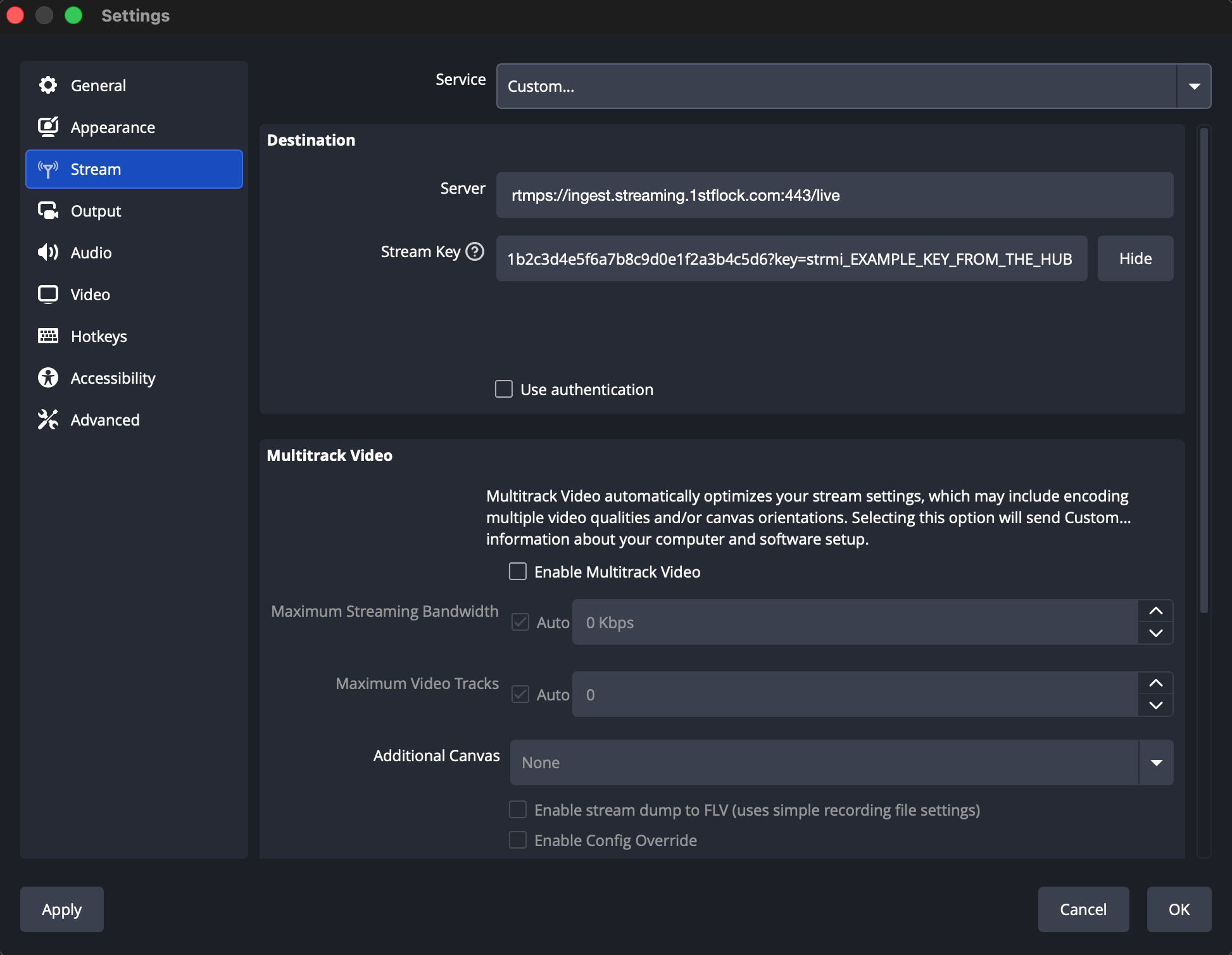
Leave Use authentication unchecked. The stream key already carries your credentials.
Also turn on Stream Delay, so a dropped connection loses as little as possible. Choose Advanced in the left sidebar and find Stream Delay:
| Setting | Value |
|---|---|
| Enable | Checked |
| Duration | 2 s |
| Preserve cutoff point (increase delay) when reconnecting | Checked |
When the connection drops, OBS then keeps what it had not yet sent and sends it once it reconnects, instead of losing it. RTMPS only — never with SRT.
Or SRT (encrypted)
If your network allows outgoing UDP to port 8890, SRT copes better with a shaky internet connection and recovers faster if one of our servers fails. It is encrypted with a passphrase of the stream's own, and the SRT URL on the card carries everything OBS needs — the Stream ID, the passphrase and 256-bit encryption — in one address:
| Field | Value |
|---|---|
| Service | Custom... |
| Server | Paste the SRT URL from the Hub, whole: srt://ingest.streaming.1stflock.com:8890?streamid=…&passphrase=…&pbkeylen=32 |
| Stream Key | Leave empty |
Leave Use authentication unchecked.
Do not use Stream Delay with SRT (Settings → Advanced → Stream Delay). In our testing OBS crashed reconnecting an SRT stream with Stream Delay on; if you turned it on for RTMPS, turn it off. SRT does not need it.
3. Set the video and audio quality
Still in Settings, choose Output in the left sidebar, and set Output Mode to Advanced at the top.
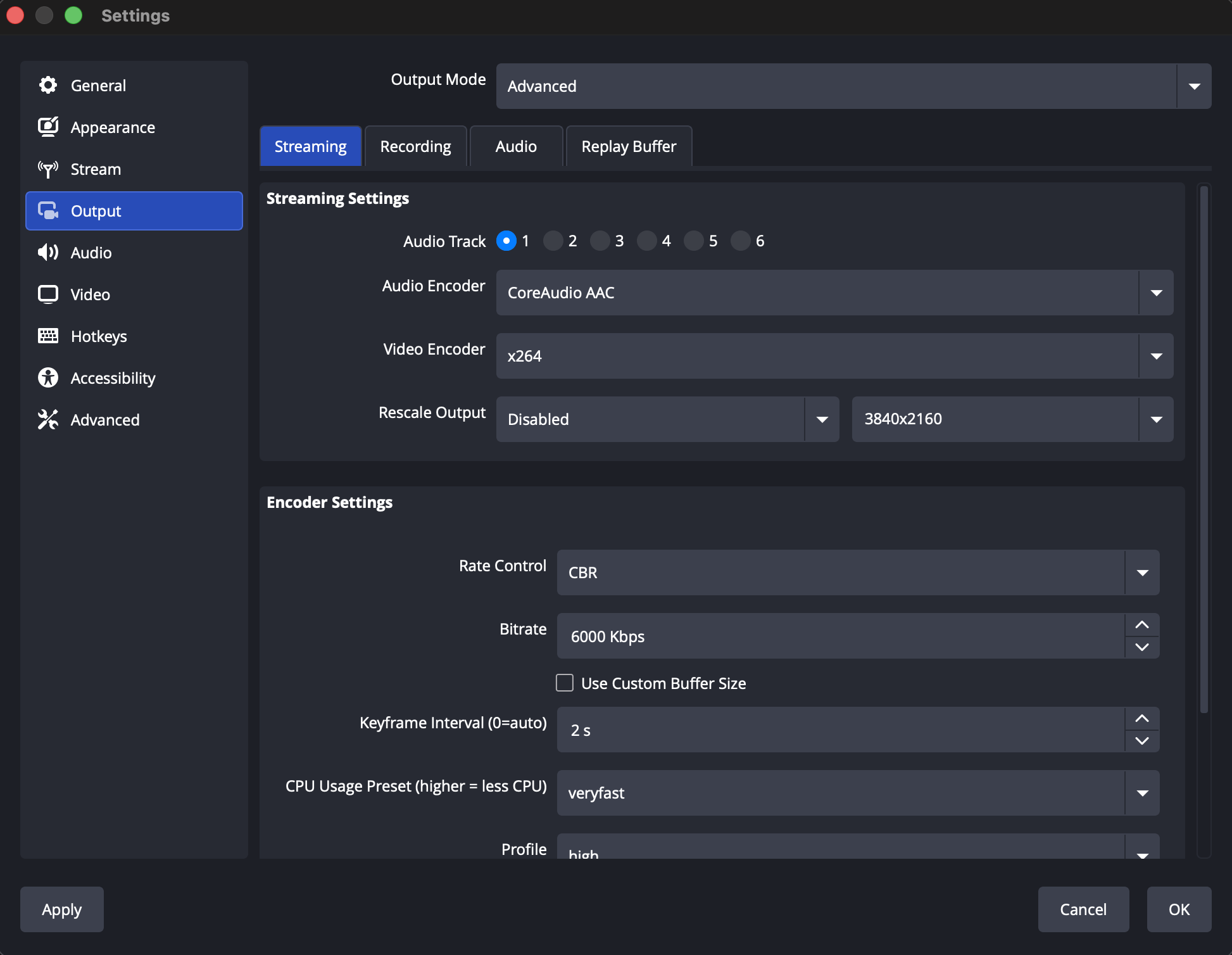
On the Streaming tab:
| Setting | 1080p | 4K |
|---|---|---|
| Video Bitrate | 6000 Kbps | 16000 Kbps |
| Keyframe Interval | 2 s | 2 s |
| Rate Control | CBR | CBR |
| Profile | high | high |
| Tune | none | none |
Keyframe Interval must be 2. This is the one setting people leave alone and should not. OBS defaults it to 0 (automatic), and on automatic your broadcast will start and look fine to you while viewers see stalling and long delays before playback begins. Set it to 2. It also keeps the gap short if OBS ever has to reconnect: we can only pick your picture back up at a keyframe, and with 2 there is never more than two seconds to wait for one.
For Encoder, pick the hardware option if your computer offers one — NVIDIA NVENC H.264 on a PC with an NVIDIA graphics card, Apple VT H264 Hardware Encoder on a Mac. Hardware encoding leaves your computer free to do everything else. If neither appears, x264 is fine; set CPU Usage Preset to veryfast.
Now choose Video in the left sidebar:
| Setting | 1080p | 4K |
|---|---|---|
| Base (Canvas) Resolution | 1920x1080 | 3840x2160 |
| Output (Scaled) Resolution | 1920x1080 | 3840x2160 |
| Common FPS Values | 30 | 30 |
And Audio:
| Setting | Value |
|---|---|
| Sample Rate | 48 kHz |
| Channels | Stereo |
Back on the Output → Audio tab, set Audio Bitrate to 160 Kbps.
Click OK to save.
Make OBS reconnect quickly
If the connection between OBS and our servers breaks in the middle of a service — your building's internet blips, or the server OBS is connected to fails — OBS reconnects on its own and your broadcast carries on. Viewers watch about a minute behind the room, so they keep watching what has already reached us while OBS reconnects: they do not see a frozen picture. They skip past whatever OBS sent as the connection broke, usually a second or two. The quicker OBS reconnects, the less there is to skip.
Choose Advanced in the left sidebar and find Automatically Reconnect:
| Setting | Value |
|---|---|
| Enable | Checked (it is on unless someone turned it off) |
| Retry Delay | 1 s |
| Maximum Retries | 25 (leave it as it is) |
Retry Delay is how long OBS waits before its first attempt to reconnect. OBS sets it to 2 seconds; 1 is the lowest it allows, and every second of waiting is a second of your service nobody sees. If an attempt fails, OBS waits a little longer before each next one, so with Maximum Retries at 25 it keeps trying for over two hours before giving up — there is no need to raise it.
Click OK to save.
How much upload speed do you need?
Your internet connection needs to send video continuously the entire time you are live. Run a speed test at the building, on the same network the streaming computer uses, and look at the upload number.
| Quality | Upload needed |
|---|---|
| 1080p | 10 Mbps or better |
| 4K | 25 Mbps or better |
Those figures leave room for everything else the building is doing. If your upload is close to the minimum, use a wired network cable rather than Wi-Fi — a wired connection is steadier, and steadiness matters more here than raw speed.
4. Add your camera and audio
OBS shows nothing until you tell it what to capture. In the Sources panel at the bottom left, click +. The Add Source window opens.
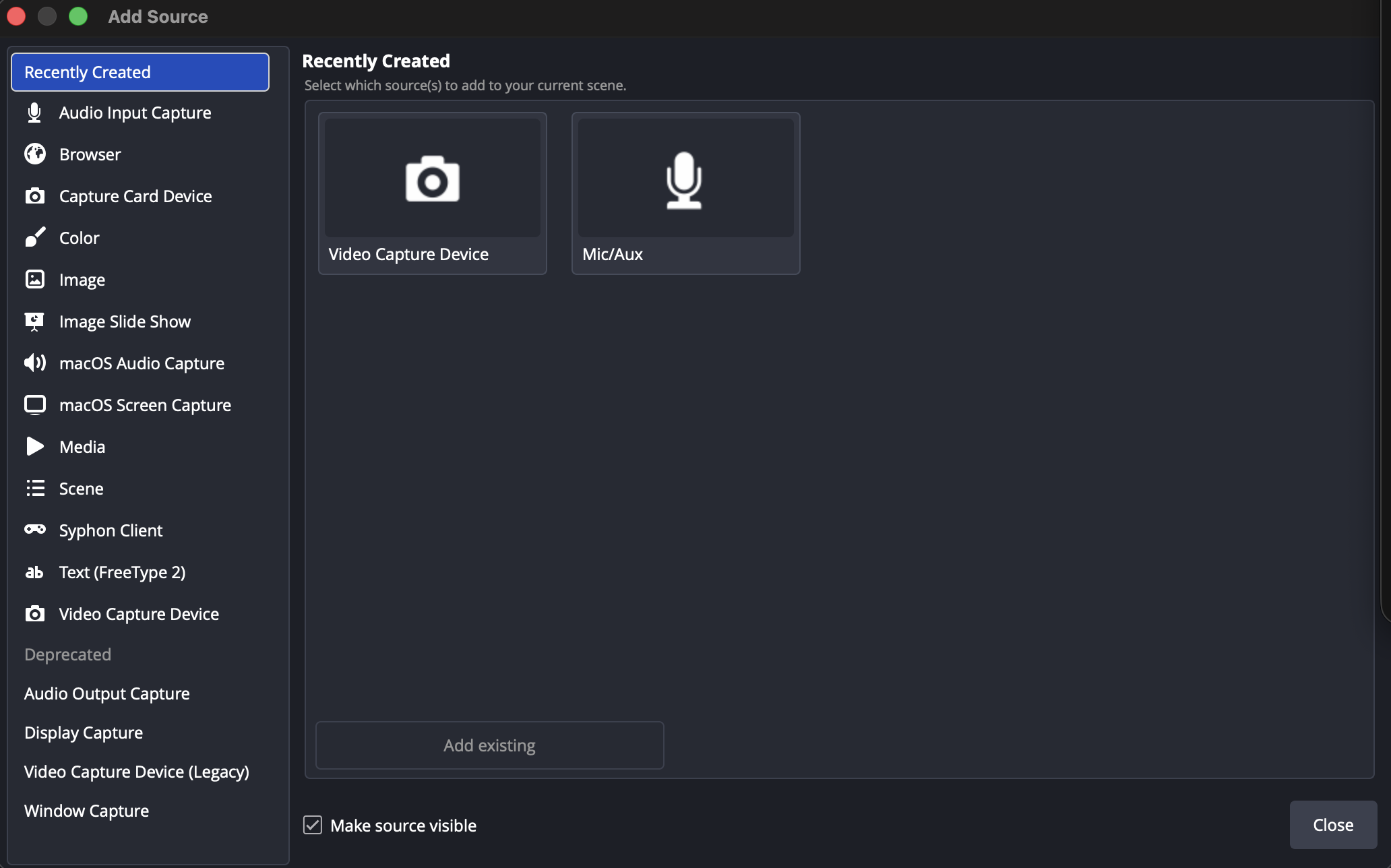
For the camera — choose Video Capture Device, give it a name like Camera, and pick your camera from the Device dropdown. A USB camera or a capture card connected to your main camera both appear here.
For the sound — choose Audio Input Capture and pick the feed from your sound desk.
Take the audio from the sound desk, not from the camera's built-in microphone. A camera microphone picks up the room rather than the mix, and the result is a broadcast where the music is loud, the speaker is faint, and nothing sounds the way it does in the building.
Watch the Audio Mixer while somebody talks. The level should sit in the yellow and only touch red on the loudest moments. If it never leaves green it will be too quiet for viewers; if it sits in red it will distort.
5. Go live
Click Start Streaming, bottom right.
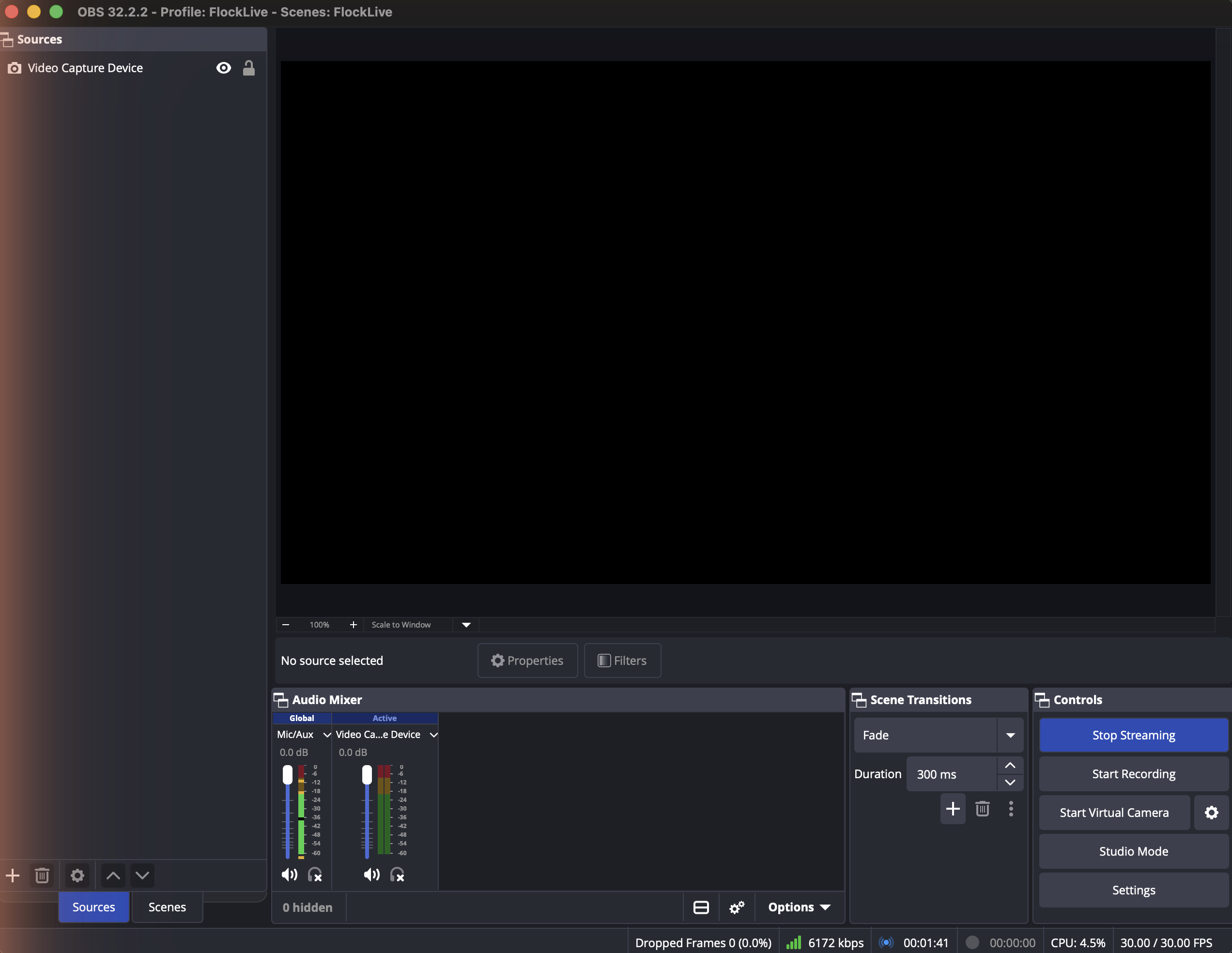
The status bar along the bottom shows a green square, your bitrate, and how long you have been live. In the Hub, the stream moves to Live within a few seconds.
For a scheduled stream you can do this up to an hour before the start time to check everything first. The Hub shows Encoder connected, but nothing is broadcast or billed until the start time, when the stream goes live on its own.
When the service is over, click Stop Streaming — then end the stream in the Hub as well. Stopping OBS ends the video, but the stream stays open, and keeps billing, until you end it or until 15 minutes pass with no video — then it ends on its own and billing stops.
Each week after this
Your OBS settings stay put. Each week: start a stream in the Hub, copy the new Stream Key into OBS's Stream Key field under Settings → Stream — the Server never changes — and click Start Streaming. With SRT, paste the new SRT URL into Server instead: it changes with every stream.
If something goes wrong
"Failed to connect to server" before a scheduled service — A scheduled stream accepts your encoder from one hour before its start time. If it is earlier than that, wait, or click Go live now in the Hub to start the stream straight away.
"Failed to connect to server" — Check the Server field. It should start with rtmps:// — not rtmp:// — include :443, and end with /live, with no stream name after it. If OBS has your church's stream key appended to the Server, move it to the Stream Key field. If your OBS is older than version 22, update it.
"Failed to connect to server" over SRT — Check that Server holds this stream's whole SRT URL — it starts with srt://ingest.streaming.1stflock.com:8890?streamid=publish:live/ and includes passphrase= — and that Stream Key is empty. An SRT URL from an earlier stream no longer works. If your building's firewall blocks outgoing UDP, SRT cannot get out at all: ask whoever looks after the network to allow outgoing UDP to port 8890, or use RTMPS.
"Invalid stream key" or the connection drops immediately — The key is almost certainly incomplete. Go back to the Hub, issue a new key, and use the Copy button rather than selecting the text. Stream keys contain a ? and a =, and both must be included.
The stream ended on its own — If no video reaches us from OBS for 15 minutes, the stream is ended and billing stops; the Hub says so on the stream. Start a new stream in the Hub and copy its new Stream Key into OBS.
You are live but nobody can watch — Check the Hub. If the stream still says Starting rather than Live, no video has arrived; check that your camera source in OBS shows a picture and that the Audio Mixer is moving.
Viewers report freezing or buffering — Look at Dropped Frames in the OBS status bar. Anything above zero and climbing means your upload cannot keep up. Lower Video Bitrate to 4000, or switch from Wi-Fi to a network cable.
Viewers say playback is delayed or keeps stalling at the start — Check that Keyframe Interval is 2 and not 0.
Viewers say the broadcast skipped ahead a few seconds — OBS lost its connection and reconnected. The status bar says Attempting to reconnect while it happens. Check that Automatically Reconnect is enabled with Retry Delay at 1 (see Make OBS reconnect quickly above), and that Stream Delay is on as described in step 2. If it happens often, the building's internet is dropping out: use a network cable rather than Wi-Fi, and look at Dropped Frames in the status bar.
The picture is fine but the sound is not — Check the Audio Mixer levels while somebody speaks. Silence there means the wrong input device is selected; open the source's properties and choose the feed from your sound desk.
Support is available 24/7 if none of these fixes it. Tell us the stream title and roughly when you tried, and we can see what reached the platform from our side.