Streaming Your Services
Turn on streaming, schedule or start a broadcast, get your encoder settings, find your recordings in Files, and understand how streaming is billed.
Streaming Your Services
Streaming lets you broadcast a service live to anyone with the link. There is no viewer limit and no cap on how long you broadcast — you are billed by the minute for the time you are actually on air.
You will need two things: streaming turned on in the Hub, and an encoder — broadcasting software or a device connected to your camera. We recommend OBS Studio, which is free; the OBS setup guide walks through installing and configuring it. If you already own a hardware encoder or other software, Choosing and Setting Up an Encoder has a guide for each one we recommend.
Who can see streaming
Streaming has two permissions of its own, and no group is given either by default:
| Permission | What it allows |
|---|---|
streaming.view | See the Streaming page: broadcasts, where each one is also sent, this month's usage, the bills, the watch page link and how chat, reactions and giving are set, and download a saved recording. |
streaming.manage | Everything that spends money or goes on air — turning streaming on or off, scheduling and starting broadcasts, issuing stream keys, sending a broadcast on to YouTube, Facebook or another service, creating and revoking API keys, changing the watch page address, turning chat, reactions and live giving on or off, moderating chat during a broadcast, and paying a bill. |
An administrator for your organization holds both without being granted them, which is why the Streaming tab is there for you and not for everybody else. Anyone else needs an explicit grant under The Hub → Admin → Access Control.
This is worth setting up if somebody other than an administrator runs the
service. The person at the sound desk needs streaming.manage — they issue the
stream key that OBS needs. A treasurer who only wants to see what streaming
costs needs streaming.view and nothing more.
Somebody with neither does not see the Streaming tab at all, and the page tells them plainly if they reach it by its address.
Turning streaming on
Open The Hub → Streaming. If streaming is not on yet, the page shows the prices and the terms. Tick the box to confirm you understand that scheduled streams start — and are billed — on their own, then click Enable streaming.
You need a payment method on file first. Streaming is billed after each month ends, to your church's payment method on file, so the Hub will not turn it on without one: the Enable streaming button stays greyed out and the card links to Billing → Payment Methods, where you can add one.
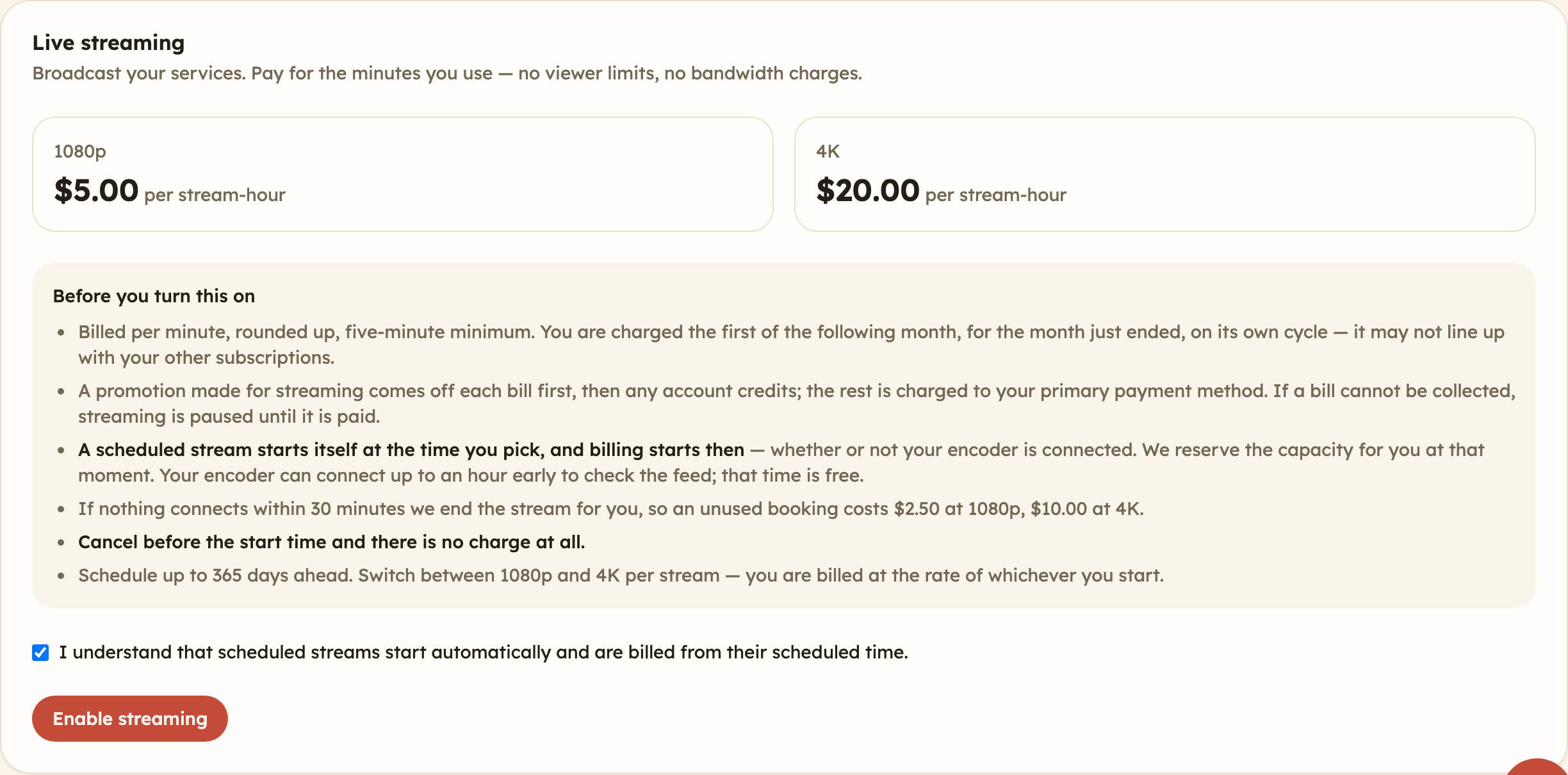
Turning streaming on does not charge you anything. Nothing is billed until a broadcast is actually running.
Starting a broadcast
Click New stream. You are asked:
When. Start now opens the stream immediately, so you can connect your encoder and go live whenever you are ready. Schedule for later books it for a date and time and starts it on its own — useful for a Sunday service where nobody wants to remember to press a button.
Title. What this broadcast is called. For a public stream, the title is shown on your watch page to anyone who opens it. For a private stream, the watch page shows Private stream in its place until a viewer enters the access code; the start time is still shown.
Who can watch. Public — anyone with the link can watch. Private — viewers enter an access code first. Leave the code blank and one is made for you, or choose your own: 6 to 32 letters, numbers or hyphens, with no spaces. The code is shown once, when the stream is created, so copy it then. To change who can watch later, or to make a new code (the old one stops working), use Viewer access on the stream in Your streams.
Quality. 1080p suits nearly every church. 4K costs four times as much per hour and only helps if your camera, your internet connection, and your viewers' connections can all carry it. If you are not certain, choose 1080p.
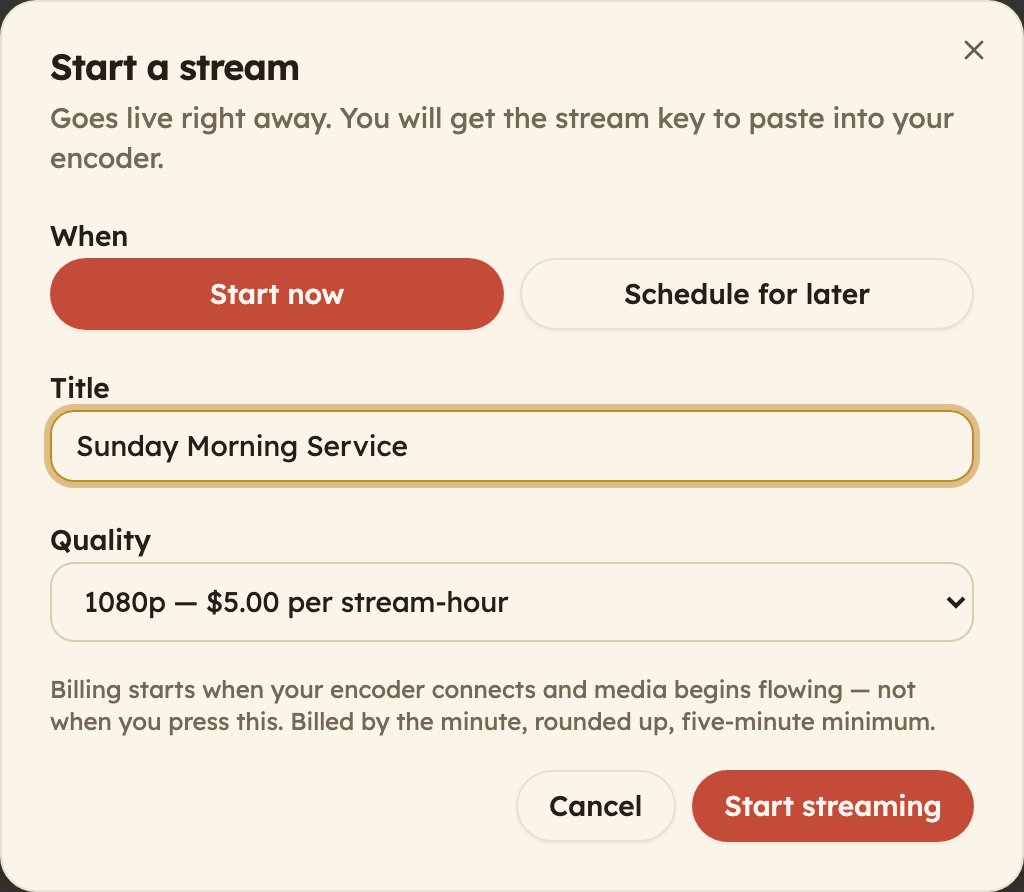
The form also has the stream's Chat, reactions and giving switches (see below) and an estimate of how much of your recording storage the broadcast will use.
Click Start streaming. The stream appears in your list and the page shows your encoder settings.
You can have as many streams on air at once as you need — each is billed for its own minutes. If you start one while another is already on air, the Hub asks first and names the stream that is running, with a button that takes you straight to it, so a second stream is never started by accident.
Your encoder settings
After you start or schedule a stream, a Connect your encoder card appears with what your encoder needs:
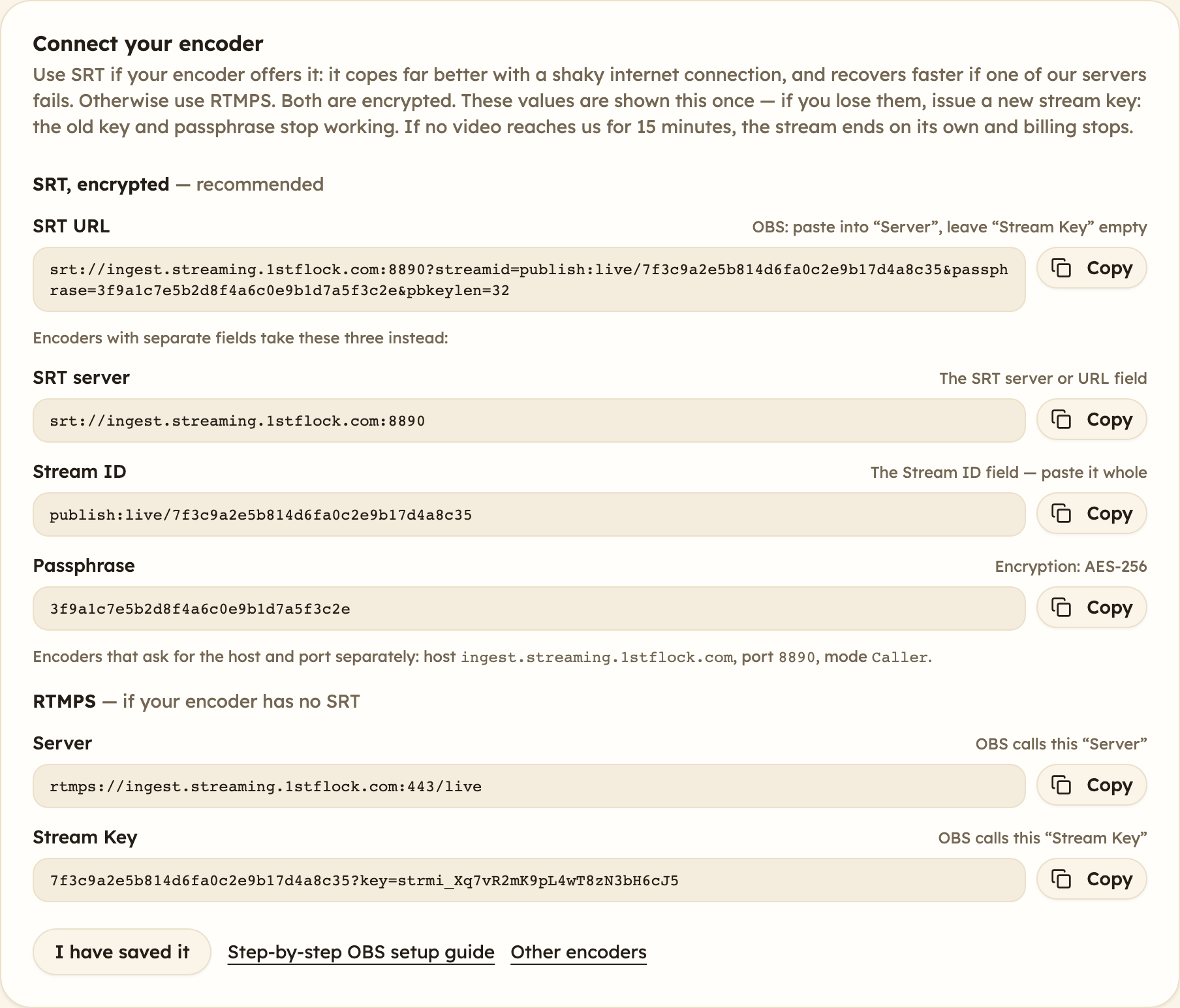
The Server is the same for every stream; the Stream Key identifies this broadcast and proves it is you. Your encoder sends to us over RTMPS — RTMP inside an encrypted connection — so the stream key never crosses the internet in clear text. Plain RTMP is not accepted.
If your encoder can use SRT, the card offers it first: it copes better with a shaky internet connection. SRT is encrypted too, with a Passphrase of the stream's own. The card gives the SRT URL for OBS, and the SRT server, Stream ID and Passphrase for encoders that ask for them separately.
The Stream Key — and the SRT passphrase and URL — are different for every stream, and shown once. Copy it before you leave the page. Where each value goes in your encoder is in its guide: OBS Studio, or the others.
Use the Copy button next to each field rather than selecting the text by hand — these values are long, and a missing character at either end produces a connection failure that does not say what went wrong.
If you lose the stream key
Click New stream key on the stream in your list. A new key is issued and displayed.
Issuing a new key immediately stops the old one working. If you are already on air when you do this, your broadcast disconnects and you will have to reconnect with the new key. Only issue a new key when you are not live, or when you have already lost the old one.
Going live
Once your software is connected, the stream moves from Starting to Live on its own. There is nothing to press in the Hub — the broadcast begins when your video arrives. Until your encoder connects, a started stream shows Waiting for encoder.
A stream you start with Go live now takes up to about a minute after your video arrives to go live, while it gets ready. A scheduled stream gets ready in the five minutes before its start time, so it goes live within seconds of the start.
When no video arrives for 15 minutes
A started stream that receives no video from your encoder for 15 minutes in a row is ended automatically, and billing stops then. That covers a stream started when nobody pressed Start Streaming in OBS — those 15 minutes are billed, because the capacity was held for you — and an encoder that stops during the service and does not come back. It has nothing to do with how many people are watching. A short drop is fine: if your encoder reconnects within the 15 minutes, the broadcast carries on.
A stream ended this way says so in Your streams: Ended after 15 minutes with no video from your encoder, and billing stopped then.
Setting up before a scheduled service
A scheduled stream accepts your encoder from one hour before its start time, so you can connect OBS early and check the camera and the sound before anyone is watching. The stream in your list says when it opens — for example connect your encoder from 9
AM — and shows Encoder connected once your video is reaching us.Connecting early does not start the broadcast. Nothing is shown to viewers, nothing is recorded, and nothing is billed until the start time, when the stream goes live on its own. To begin sooner, click Go live now.
If you press Start Streaming in OBS more than an hour before the start time, OBS reports that it could not connect. Try again once the hour before the service has begun.
Sharing your broadcast
Your church has one watch page, shown on the Streaming page under Your watch page. Share that link on your website, in your bulletin and on social media. It never changes from week to week:
- while you are live, it plays the service — or, when you have more than one stream on at once, lets viewers choose which to watch;
- when a stream is about to start, it says so and starts playing on its own;
- between services, it shows when the next scheduled stream begins, in the viewer's own time zone.
Viewers do not need an account, and there is no limit on how many can watch. The page plays in every current browser, including on iPhone and Android.
Use Copy link to copy the address and Open to see the page as your congregation will. The address is made from your church's name, for example 1stflock.com/watch/grace-community-church.
On your own website
To show the player on your church's own website, click Copy embed code under Embed on your website and paste it into your website's embed or HTML block. Each stream that has not finished also has its own Embed code. See Embed your live stream on your website for where to paste it on WordPress, Squarespace and Wix, and what viewers see.
Changing the address
Click Change address, type the new one (lowercase letters, numbers and single hyphens) and confirm. The old address stops working immediately, so update anywhere you have shared it. The address can be changed a few times a day at most.
Also streaming to YouTube, Facebook or Twitch
Every broadcast that has not finished has an Also stream to section. Add YouTube, Facebook, Twitch, or any other service that gives you a server URL and a stream key, and your broadcast is sent there too while it is live — up to five places for each broadcast.
Click Add destination, choose the service, and paste the stream key that service gives you:
- YouTube, Facebook or Twitch: the server URL is filled in for you. Copy the stream key from YouTube Studio where you set up the live stream, from Facebook when you go live with streaming software (copy Facebook's persistent stream key if you will use it for more than one broadcast), or from the stream settings in your Twitch dashboard.
- Custom: paste the server URL as well as the stream key. The server URL starts with
rtmps://orrtmp://; anything after a?belongs in the stream key, not the URL. Some services show a "stream URL" that has the key on the end: paste only the server part into Server URL, and the key into Stream key. The Hub refuses a server URL with your stream key in it, because the server URL is shown to everyone who can see streaming.
The name starts as the service's name; change it to something your team will recognise, such as Youth channel.
The stream key is hidden while you paste it and is never shown again: the list shows only its last four characters, so you can tell which key it is. To use a different key, remove the destination and add it again.
Sending to another service is billed per destination, for each hour it is live there (see What you are billed below). The Add destination dialog shows the rate for the broadcast's quality before you add one. If the Hub shows Sending this broadcast to other services isn't available, destinations cannot be added to that broadcast.
Each destination shows how it is doing:
| Status | What it means |
|---|---|
| Idle | The broadcast is not live yet. Sending starts when it goes live. |
| Connecting | The broadcast is live and the connection to that service is being made. |
| Live | Your broadcast is reaching that service. |
| Failing | It is not getting through. The reason is shown underneath — usually the stream key, or the service not being ready to go live. |
| Paused | You paused it. Nothing is sent there until you resume it. |
Pause stops sending to one destination without removing it, and Resume starts again. Remove asks first, then deletes the destination and its stream key.
A broadcast that has ended cannot be sent anywhere else, so the section is not shown on it. If streaming is suspended or turned off while a broadcast is still set to go elsewhere, the Streaming page shows where it is sent, and you can still pause or remove each destination; adding and resuming wait until streaming is back on. Seeing where a broadcast is sent needs streaming.view; adding, pausing and removing destinations needs streaming.manage.
Chat, reactions and live giving
Beside the video on your watch page, viewers can take part while you are live:
- Chat — viewers send short messages that everyone watching sees. Somebody signed in to 1st Flock chats under their own name (first name and last initial, such as "Jane D."), with a member mark when they are an active member of your church; everyone else chooses a name, and cannot take the name of somebody signed in who has chatted or reacted while watching, or did recently.
- Reactions — viewers tap hearts, praying hands and other reactions. They show in the chat with who sent them, grouped so a burst of claps is one line ("👏 ×12 · Jane, Mark and 10 others"), and float up over the video without names.
- Live giving — a Give button in the player opens your church's giving form right there, so viewers give without leaving the stream. A gift then shows its amount over the video and in the chat — "$20". A giver who ticks Show my name on screen is shown with it, by first name and last initial ("Jane D. · $20"); that box starts unticked, and an anonymous gift never shows a name. Either way your church sees who gave, unless they gave anonymously.
Viewers still do not need an account for any of this.
Your church's settings
The Chat, reactions and giving card on the Streaming page sets what every new stream starts with. Turn each one on or off and click Save:
- Chat, Reactions and Live giving turn each one on or off.
- Reactions on the video floats reactions up over the video. Turn it off to keep the picture clear: reactions still show in the chat.
- Show gifts shows each gift's amount over the video and in the chat, with the giver's first name and last initial only when they chose to be shown. Turn it off and giving still works, with nothing shown.
Reactions on the video cannot be changed while Reactions is off, nor Show gifts while Live giving is off; each keeps its setting for when you turn the other back on.
Live giving uses your church's online giving page, so the Give button only appears while that page is accepting gifts. Live giving also has to be on in this card for any stream to show a Give button: while it is off here, each stream's own live giving switch is shown off and cannot be turned on. Turn it back on here and every stream that was not switched off on its own shows the Give button again.
Changing one stream
When you create a stream, the Chat, reactions and giving switches in the form start from your church's settings; change them for that stream if you need to.
For a stream that is scheduled or live, click Chat & reactions on it in Your streams, change the switches and click Save. On a live stream the change is sent to everyone watching — turn chat off and nobody can send messages until you turn it back on — and the panel shows what viewers have now: Everyone watching has these settings, or, while the change is still on its way, what they still have. If that does not update within a few seconds, contact support, available 24/7.
Moderating chat during a broadcast
While a stream is live, Chat & reactions also shows the chat as it arrives, with the status of the connection (Connected, Reconnecting… or Unavailable). If the connection drops, it reconnects on its own.
- Remove takes a message away for everyone.
- Mute stops a person's new messages reaching anyone else. You are asked first, and you can tick Also remove their messages from the chat to clear what they have already sent. A muted viewer is not told: their messages are still shown to them, and to you, marked as sent while muted.
- Unmute — next to their messages, or under Muted viewers — lets everyone see their new messages again. Somebody muted whose messages are no longer in the recent chat is listed as A viewer with no recent messages.
Messages written by somebody moderating are marked Staff, and can be removed but not muted. Messages from an active member of your church are marked Member; somebody signed in who is not one of your members is shown by the name on their account, without the mark.
Chat messages are kept for 30 days and then deleted.
Moderating, and changing any of these settings, needs streaming.manage (see Who can see streaming at the top of this page). Somebody with streaming.view sees how chat, reactions and giving are set, but no switches.
Ending a broadcast
Click Stop on the stream and confirm. Your viewers see the broadcast end, and your broadcasting software is disconnected within a few seconds.
Stopping is also what stops the billing clock, so stop a broadcast when the service is over rather than leaving it running. Closing OBS on its own is not enough: the stream keeps running, and billing, for 15 minutes in case your encoder reconnects, and only then ends itself (see When no video arrives for 15 minutes above). End the stream in the Hub instead.
Why a broadcast ended
Each ended broadcast in Your streams says how it ended when it was not stopped by your team:
| What it says | What happened |
|---|---|
| Ended — no video | No video reached us from your encoder for 15 minutes, so the stream was ended and billing stopped then. |
| Ended on its own after 12 hours | A single broadcast can run for at most 12 hours. Start a new stream to keep going. |
| We couldn't deliver this broadcast | Something went wrong on our side. The broadcast is not billed. If it happens again, contact support, available 24/7. |
| Didn't start | A scheduled booking could not start, and was called off 15 minutes after its start time. It is not billed. The reason is shown, for example that your monthly streaming limit was used up. |
While a booking cannot start, the Hub warns you before it is called off — for example This broadcast can't start: your monthly streaming limit is used up. It will be called off at 10
if nothing changes. — so there is time to put it right.Recordings
Every broadcast is recorded — there is nothing to turn on. When a stream ends, its recording is saved to your church's Files, in a folder called Recordings, as one video file — as long as it fits in your church's storage (see When your storage is full below).
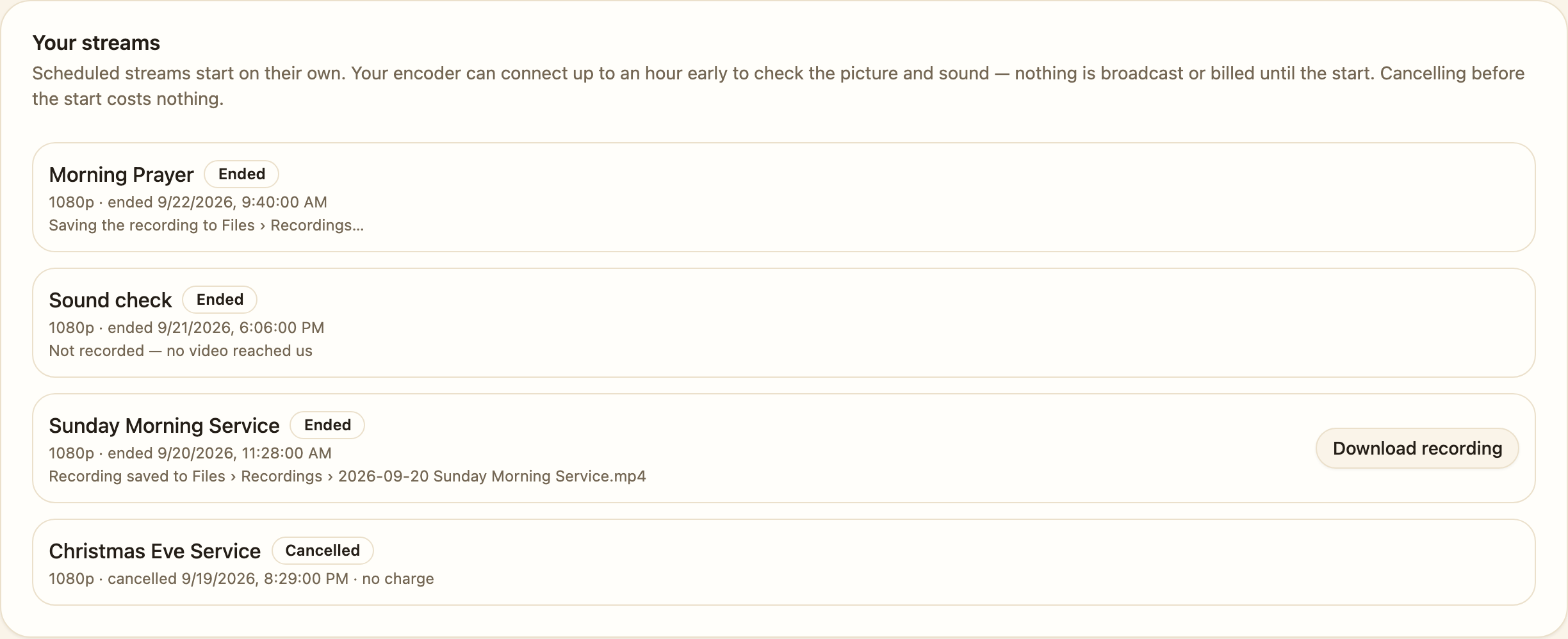
Where to find it. Each ended broadcast on the Streaming page says where its recording went, with a Download recording button that fetches the file straight from there. It is also in Files, in the Recordings folder, where you can move, rename, share or delete it like anything else — if your church has the church-management product, which is where Files lives. Recordings are kept only in your church's Files storage, so a church with streaming on its own, without Files storage, does not get recordings kept (see below).
Each file is named after the day the broadcast started, in your church's time zone, and its title — for example 2026-09-20 Sunday Morning Service.mp4. If two broadcasts on the same day have the same title, the second is saved as 2026-09-20 Sunday Morning Service (2).mp4. A file you already have in that folder is never replaced.
When it arrives. Usually within half an hour of the stream ending. The recording is prepared first — about a minute for each hour of broadcast, longer for 4K — and recordings are moved into Files every 15 minutes. Until then the stream says Saving the recording to Files › Recordings…; the page updates on its own.
The file. An MP4 (H.264 video with AAC audio) in the top quality you broadcast in — 1080p or 4K. It is the picture your viewers saw, not compressed a second time, and it plays in any video player: download it, keep it, or upload it to another site. If your encoder lost its connection during the service, the file keeps the service's real timeline, holding the last picture for as long as the connection was down.
Getting it back later. The Download recording button prepares a link and opens it. The link works for about fifteen minutes and a fresh one is made each time you click — but while it lasts it works for anyone who has it, so do not forward or post it; send people to the watch page or share the file itself instead. Older broadcasts are further down the list: use Show earlier broadcasts at the bottom of Your streams.
It is removed from the streaming service once saved. As soon as the file is in your Files and its size has been checked against the original, we delete our copy from the streaming service, so the file in Files is then the only copy. This does not affect your watch page, which shows only what is live or coming up.
When your storage is full
A recording is a file like any other in Files and counts toward your church's storage. Recordings are only ever kept in the storage your church has — never beyond it, and never partly. As a guide, an hour at 1080p is about 2.6 GB, and an hour at 4K about 6.8 GB.
When a new recording doesn't fit, what happens depends on the setting under Recording storage on the Streaming page:
- Replace the oldest recordings (the setting every church starts with). Your oldest recordings are deleted, oldest first, until the new one fits. Only recordings are ever replaced, never your other files. A recording you have marked Keep is never replaced — use the Keep button next to it in Your streams. If the recordings that may be replaced still aren't enough, the new recording is not saved.
- Stop saving new recordings. Nothing you already have is touched, and a recording that doesn't fit is not saved.
A recording that is not saved is not kept anywhere: our copy on the streaming service is deleted too. The stream then says Not saved and why — for example there was not enough free space, or the only recordings that could have made room are marked Keep. A recording that was deleted to make room says Recording replaced and when.
You can also limit how much space recordings may use, in GB, so they never crowd out your other files. The same rules then apply inside that limit.
Before and during a broadcast. When you start or schedule a stream, the dialog shows an estimate for the quality you picked: a bar of your storage with the recording added, and whether it fits, which older recordings it would replace, or — in red — that it would not be saved. Pick roughly how long the service runs to size the estimate; it is only used for the estimate, and a broadcast is never cut off. While a stream is live, it says how much more of it fits in your free space, and what happens after that.
Warnings. Everyone who can manage streaming is emailed when your storage passes 80%, 90% and 100% full, and again whenever a recording is not saved or older recordings are replaced to make room. Each warning is sent once; if you free up space and it fills up again, you are warned again.
Making room. Delete files you no longer need from Files, download recordings you want to keep elsewhere and delete them, unmark Keep on recordings you can let go, or add storage under Billing → Subscriptions. A church without Files storage has none to use; Files storage comes with Church Management.
A stream that ended before any video reached us has no recording, and says Not recorded; a booking cancelled before it started has none either. Nothing is recorded while your encoder is connected early, before the start time.
If a stream says The recording could not be saved, contact support, available 24/7.
What you are billed
You are billed per minute of broadcast, rounded up, with a five-minute minimum. When the clock starts depends on how you started the stream:
-
Start now — the clock starts when your video first reaches us, not when you press Start streaming. If no video ever arrives, the stream is ended after 15 minutes and those 15 minutes are billed, because the capacity was held for you from the moment you started it.
-
Schedule for later — the clock starts at the time you booked, whether or not your encoder is connected yet, because the capacity is reserved for you from that moment. If no video reaches us within 15 minutes the stream is ended for you and you pay for those 15 minutes; the Hub shows the exact amount when you book.
Your encoder can connect up to an hour before the start time to check the feed; that time is not billed (see Setting up before a scheduled service above). To begin before the booked time, click Go live now on the stream in the Hub; billing then starts when your video arrives.
Either way, the clock stops when the stream ends.
Each quality, 1080p and 4K, has its own rate per stream-hour. The current rates are on the pricing page, on the Streaming page in the Hub, and in the New stream dialog before you book.
Sending to other services (see Also streaming to YouTube, Facebook or Twitch above) is billed on top of the broadcast, per destination-hour: each destination is billed for the time it is actually live on that service, so a broadcast sent to two services for an hour comes to two destination-hours. Time a destination spends connecting, failing, paused or waiting for the broadcast to start is not billed. Each destination's time is rounded up to the whole minute once per broadcast, with no minimum. The rate depends on the broadcast's quality; it is on the pricing page and in the Add destination dialog. On your bill and in the This month panel it appears as its own line, Sending to other services, with its destination-hours and amount.
The This month panel at the top of the Streaming page shows how many streams you have run, how many billable minutes they came to, and what those minutes — and any sending to other services — cost so far. That figure is before any account credits; they are taken off when the bill is raised.
Streaming is billed on the 1st of the following month, for the month just ended — one bill per month, covering every stream that month. It is billed on its own, not alongside your subscription, so it may be charged on a different day from your other plans. Months run midnight to midnight UTC, and a broadcast counts toward the month in which it ends — so in the United States and Canada, a broadcast that ends late on the last evening of a month counts toward the next month.
A scheduled stream that you cancel before its start time costs nothing. Once the start time passes, it is billed as above.
Streaming from your own software (API access)
If your organization runs streams from its own software — or offers live streaming to its own customers — create an API key on the API access card at the bottom of the Streaming page:
- Click Create key and give the key a name, such as Production.
- Confirm your password.
- Copy the key from Your new API key and store it with your software's other secrets. It is shown once; if it is lost, revoke it on the same card and create another.
The card also shows the API address your software sends requests to and a link to the API documentation. Every stream made with one of your keys is billed on your organization's monthly streaming bill at the same per-hour rates as streams booked in the Hub, and appears on the bill marked API, with your own customer reference if your software sent one.
Only an administrator, or someone given the streaming.manage permission under Admin › Access Control, can create or revoke keys. Revoking a key refuses every request made with it from then on; a broadcast already on air keeps going until its encoder stops. Turning streaming off, or an unpaid streaming bill, suspends every key your organization holds.
Paying your streaming bill
Each month's bill appears under Bills on the Streaming page, newest first. A bill shows the month, how many streams and billable minutes it covers, and:
- Streaming — what the minutes, and any sending to other services, cost at the rates above;
- Account credits — what your account credits paid, once the bill has been charged;
- Charged — what went on your payment method.
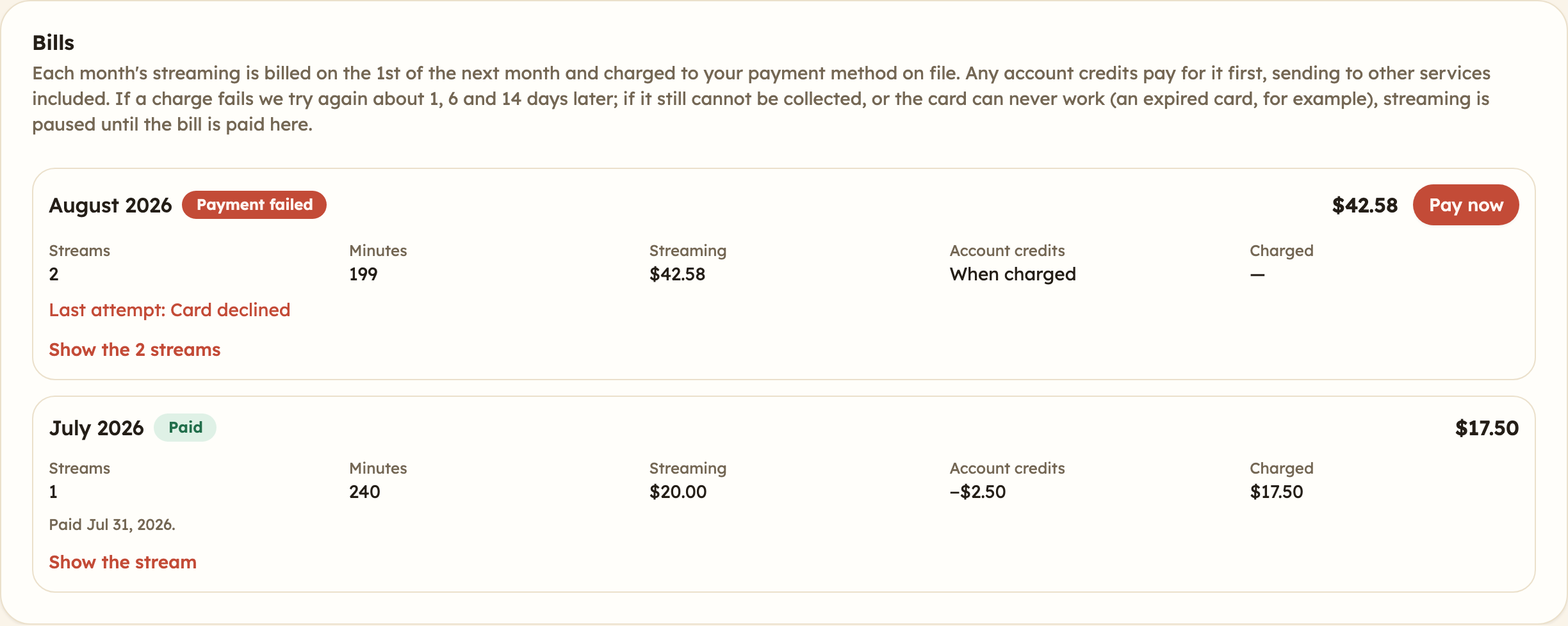
Click Show the streams under a bill (the link says how many there are) to see each broadcast on it, with its quality, the day it ended, its minutes and its price. Each stream's price is rounded to the cent; the month itself is priced on its total minutes, so the streams can add up to a few cents more or less than the bill.
The bill is settled in this order:
- any account credits pay for it first — the whole bill, sending to other services included;
- then the rest is charged to your payment method on file — your primary card if you have marked one on Billing → Payment Methods, otherwise the card your subscription uses, or another saved card.
If your credits cover the whole bill, nothing is charged to your card, and what is left of them stays in your balance for later bills.
Each bill shows where it stands:
- Paid — settled, with the date it was paid.
- Due and a date — not paid yet; that is when we will charge it automatically. If an earlier attempt was declined, the reason is shown under the bill.
- Payment failed — we could not collect it, and have stopped trying. The reason is shown under the bill.
When a charge is declined
We charge the bill on the morning of the 1st: at about 12
UTC, which is early morning everywhere in the United States and Canada (7 am Eastern in winter, 8 am in summer). If your card is declined, has insufficient funds or has expired, your backup payment method is tried straight away (if you have one). If the bill still is not paid, we try again about 1, 6 and 14 days later — the bill shows the date of the next attempt.If the last of those attempts fails — or sooner, if the payment method can never work, such as an expired or invalid card, or there is no payment method on file — the bill is marked Payment failed and streaming is paused.
We email your church's address twice at most: once when the first attempt is declined, with the date streaming will be paused if the bill is still unpaid, and once if streaming is paused. The retries in between do not send another email.
Pay now
Any bill that is not paid yet has a Pay now button. It asks you to confirm first, showing the amount and the payment method it will charge. Any account credits are used before the card, so the charge can be smaller than the amount shown. Nothing is charged until you confirm.
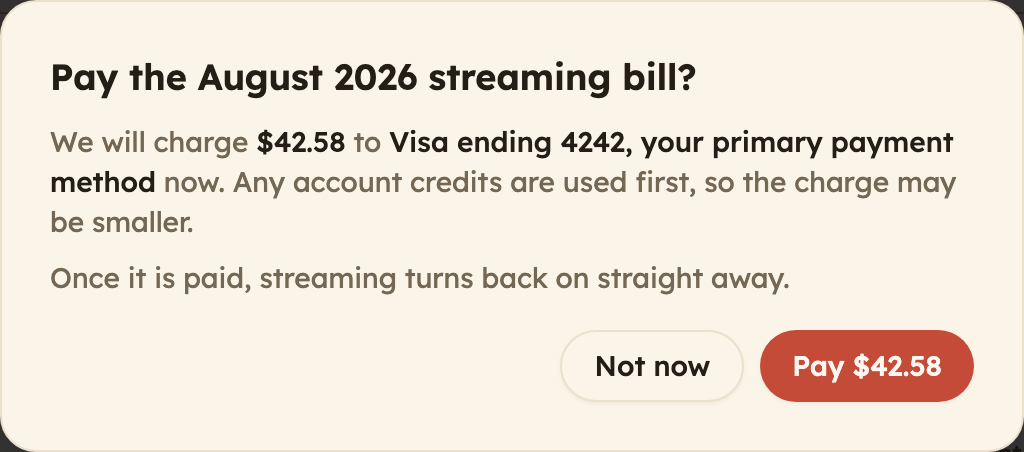
If the payment does not go through, the reason stays on screen with a link to update your payment method, so you can fix the card and try again. You can try up to five times an hour.
If the Hub cannot get a clear answer — your connection drops, the payment takes too long to confirm, or the payment service has a fault — it says it could not confirm whether the payment went through, and does not offer the button again straight away. Close the box and look at the bill: if it still says it is unpaid, try again; if it says Paid, it went through.
You can use Pay now on a bill that is still Due as well, if you would rather not wait for the automatic attempt.
If streaming is paused
When a bill cannot be collected, a notice at the top of the Streaming page says so, for example: Streaming is paused because the August 2026 bill could not be collected. Pay it now to turn streaming back on.

While streaming is paused:
- you cannot start or schedule a stream, and anything that was scheduled or live has been stopped;
- your watch page is offline;
- the minutes you streamed before the pause are still billed.
Click Pay now in the notice (or on the bill under Bills) and confirm. As soon as the payment goes through, streaming is back on — there is nothing else to do and nobody to contact. If more than one bill failed, every one of them has to be paid before streaming comes back; the notice names each of them, with a button to pay each one.
Scheduled streams that were cancelled by the pause are not restored. Schedule them again once streaming is back on.
If the page says Streaming is suspended without naming a bill, the pause is not about a streaming bill, and paying will not lift it. Contact support, available 24/7.
Account credits
Streaming has no promotion codes: it is billed by the hour, and the only way to pay less is an account credit. Account credits are your church's credit balance with 1st Flock. They are used automatically on each streaming bill, before your payment method, and they pay for everything on it — the minutes you streamed and any sending to other services alike. You do not need to do anything to use them. A credit larger than a month's bill pays all of it, and the rest is kept for later bills.
Turning streaming off
Turn off streaming cancels everything scheduled and stops anything currently live. You are still billed for what has already run this month: that bill is raised on the 1st as usual, and it and any earlier bills stay under Bills on the Streaming page, where you can still pay them. You can turn streaming back on at any time — though if one of those bills could not be collected, the Hub asks you to pay it first.
Getting help
Support is available 24/7. If a broadcast will not connect, the OBS setup guide has a troubleshooting section covering the common causes.